


Fish Eye Effect / Peep Hole Effect in DaVinci Resolve
May 23, 2024
Davinci Resolve Tutorial
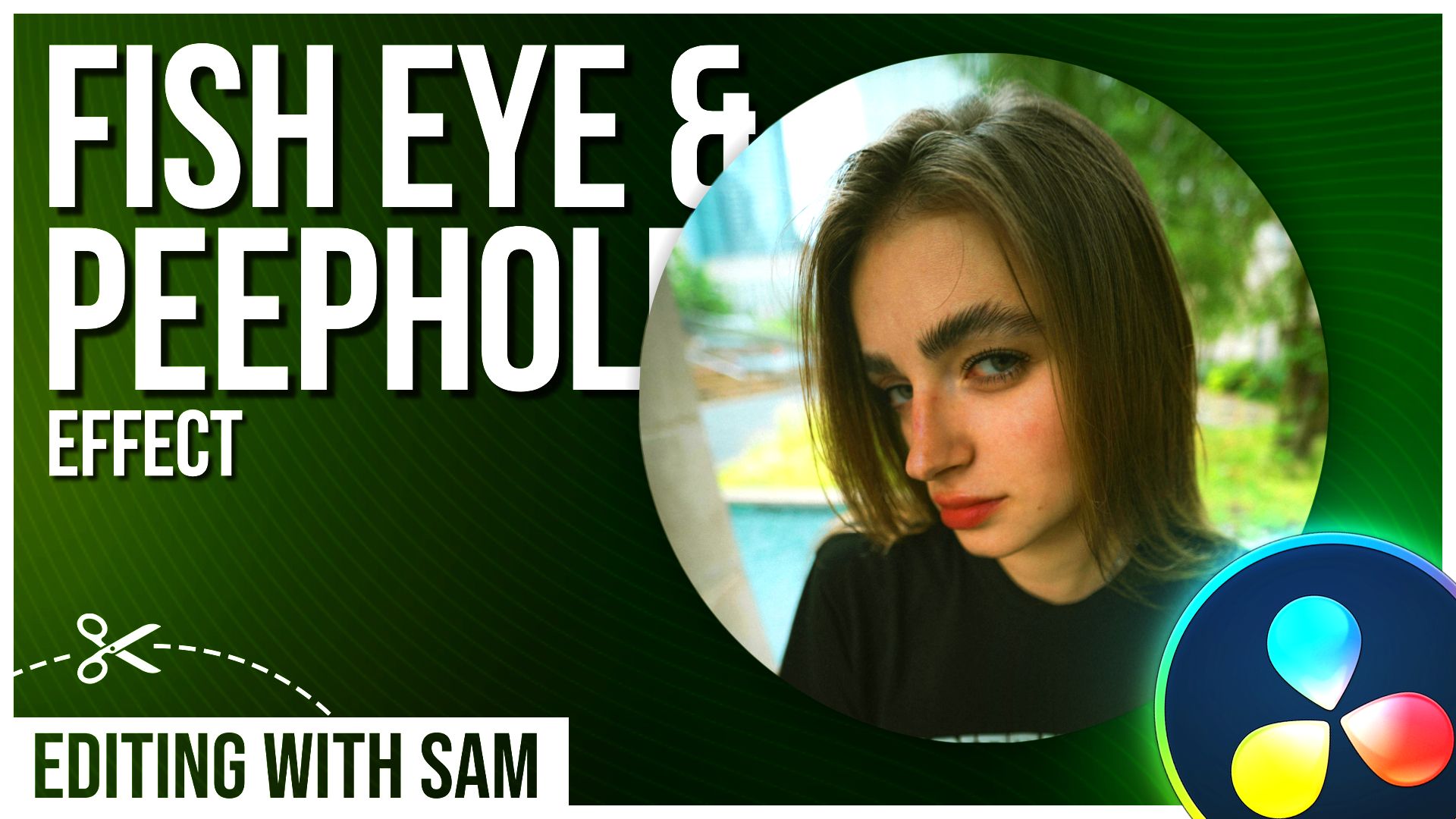
DaVinci Resolve makes adding creative effects like Fisheye and Peephole simple using the Fusion page. Here’s a step-by-step guide:
Fisheye Effect
1. Switch to Fusion Page: Start by clicking on the `Media In` node, then press `Shift+Space` and add the `Dent` node.
2. Adjust the Dent: In the inspector, switch `Type` to `Dent 2`, increase the strength, and adjust the size to create a magnified center.
3. Add a Mask: Use the `Ellipse` node to focus the effect and invert it for a clear surrounding background.
Peephole Effect
1. Soft Edge Adjustment: Soften the ellipse's edges for a realistic peephole appearance.
2. Add Blur: Use a `Blur` node and mask it to blur only the edges, softening them further.
3. Add Prism Blur: Enhance realism by applying an RGB split effect, masking it to the edges for subtle highlights.
These effects can be fine-tuned to your creative preference. Experiment with parameters to achieve the desired output.
This simple tutorial elevates your editing with creative tools in DaVinci Resolve.
* with sam
Made in मुंबई
©WITH SAM 2026 ALL RIGHTS RESERVED